
Applying member rates for walk-in, phone, or email reservations
Steps for receptionists to check membership and apply the correct member rate when booking manually in Mews.
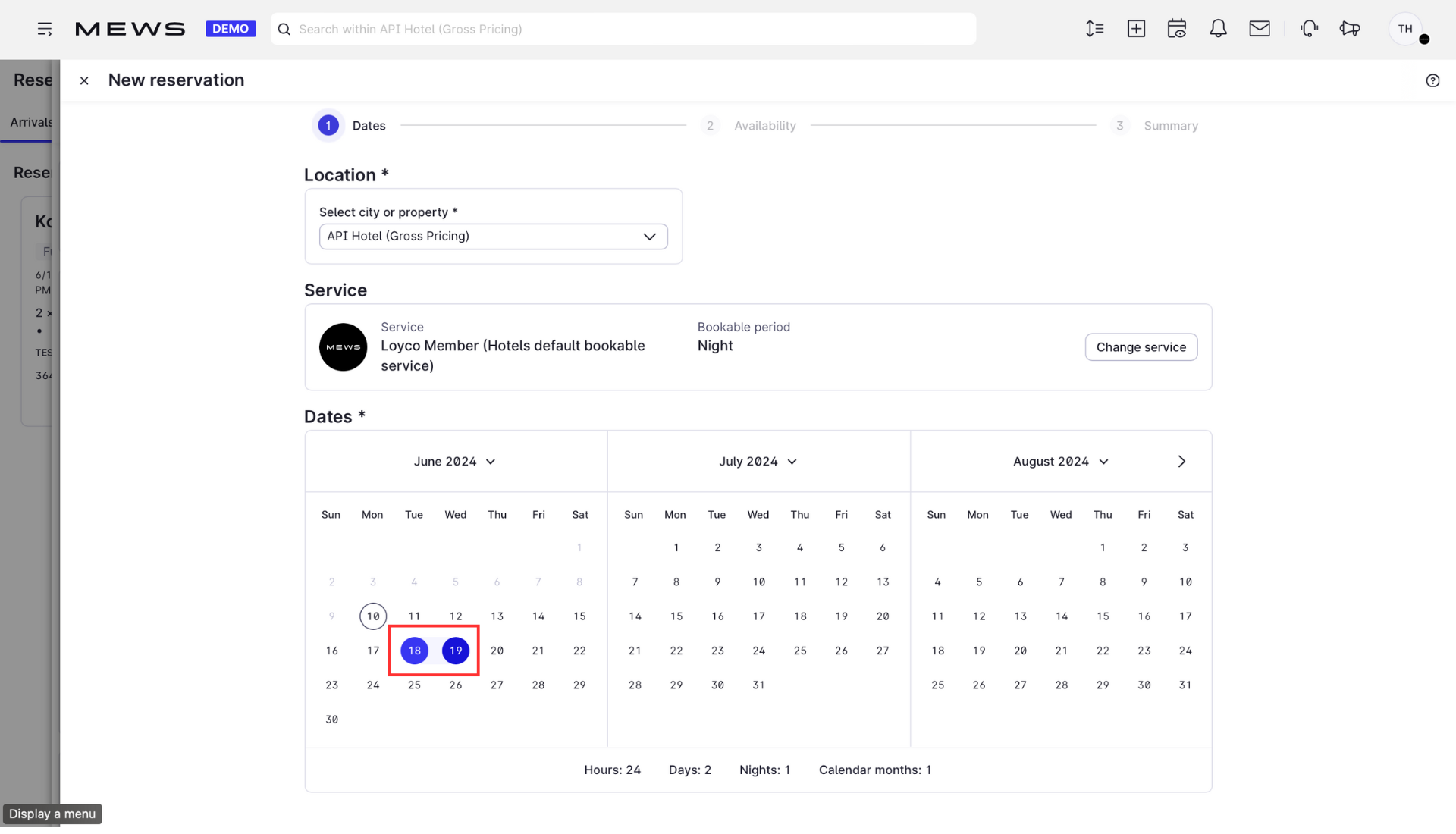
1. Choose dates and check availability
In Mews, select the guest's requested dates and check availability as you would for any manual reservation.
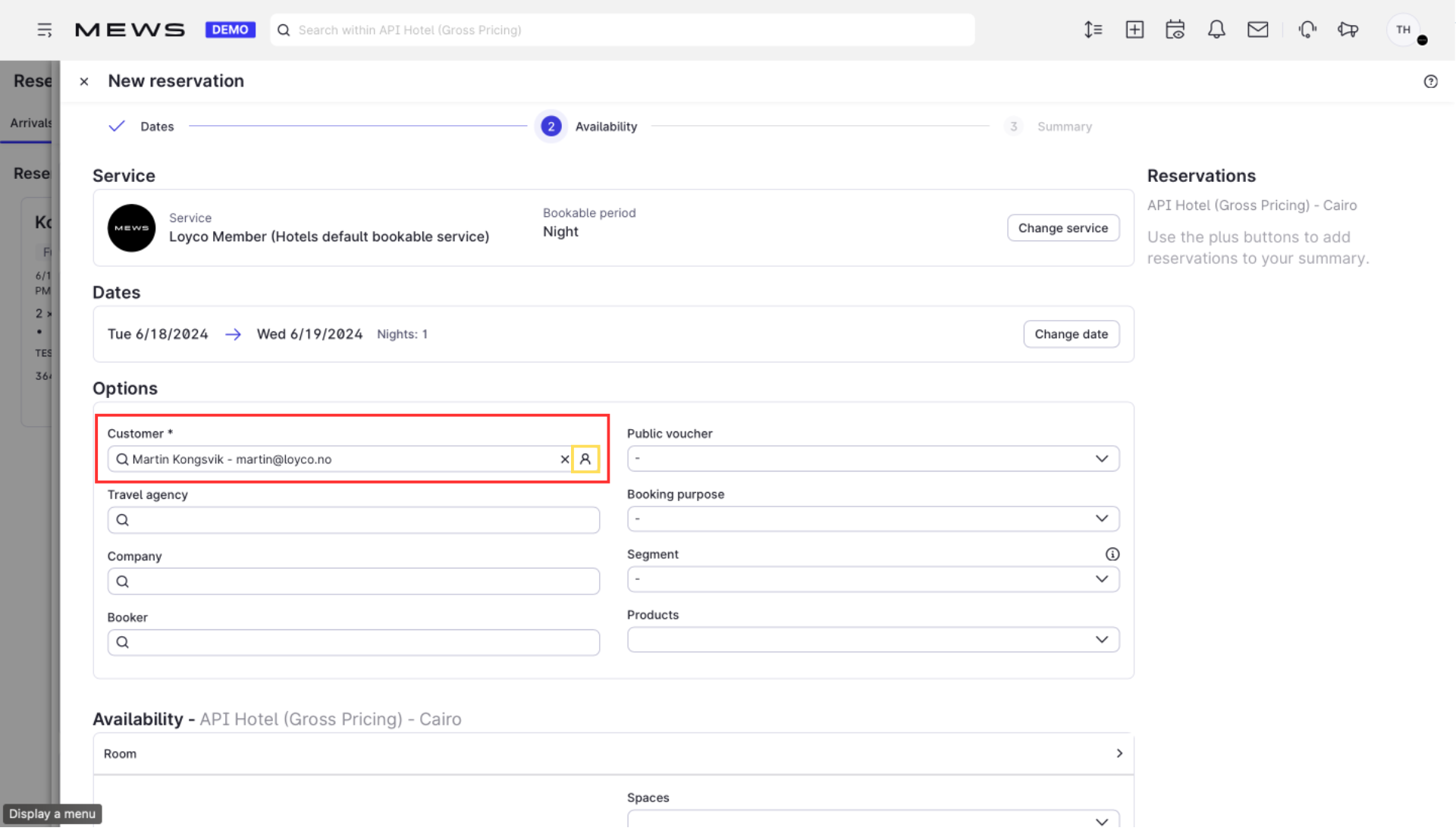
2. Check if the guest is a member
Click the profile icon to open the guest's profile and verify membership.
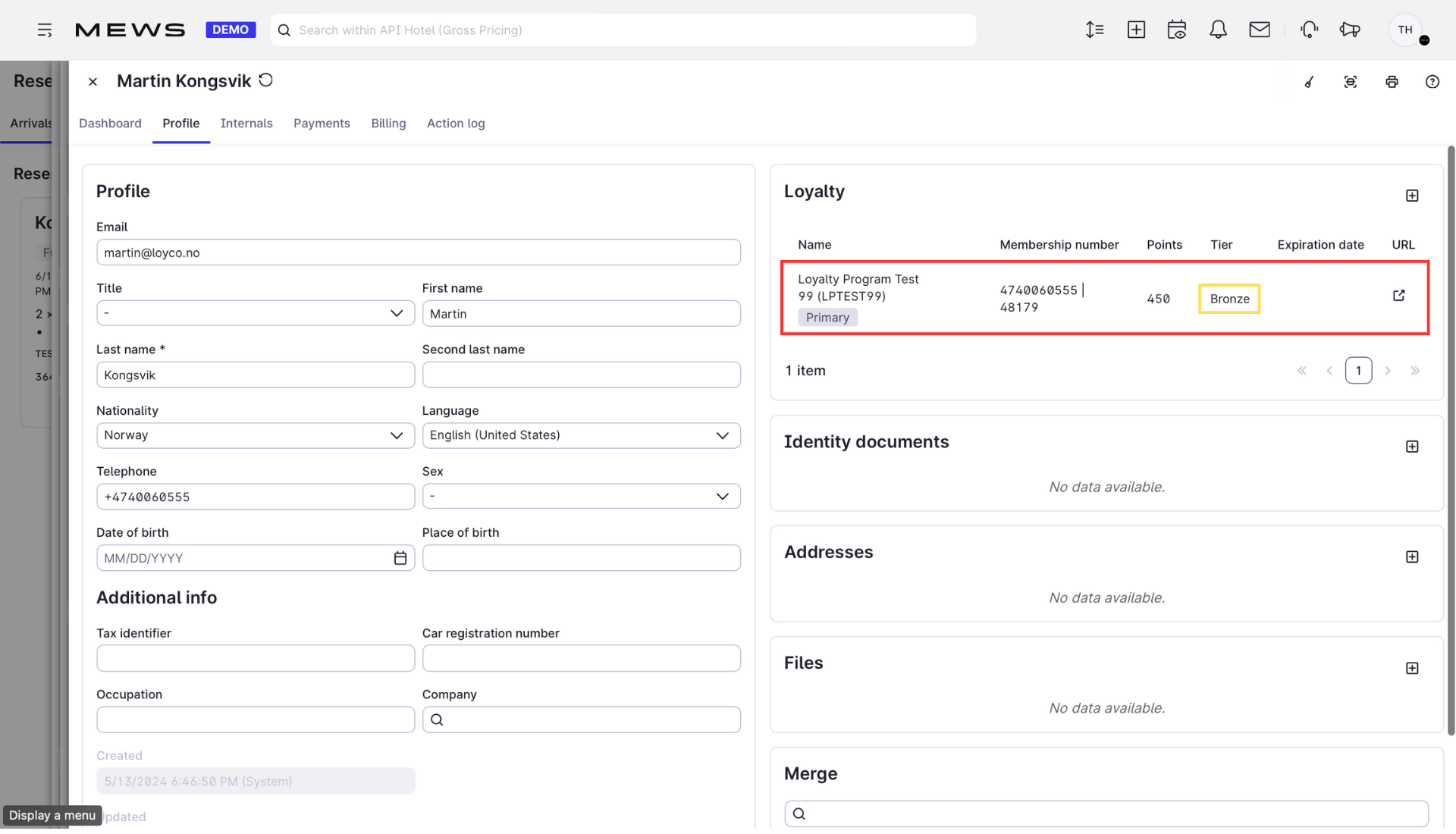
3. View membership status and level
The profile shows whether the guest is a member and their member level. Use this to determine which rate group applies.
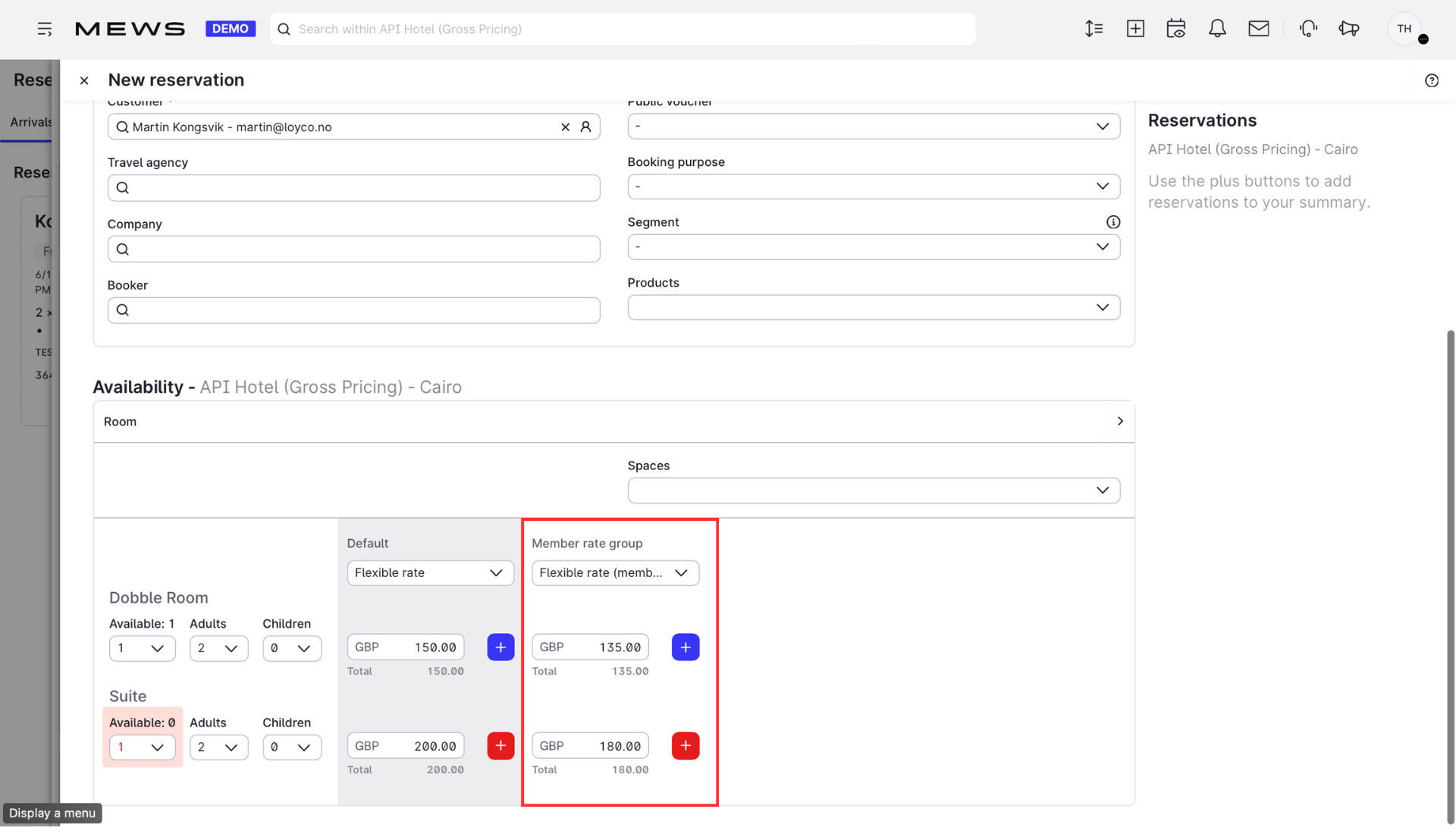
4. Select the member rate
Choose the rate that matches the guest's member level using the Member Rate Group dropdown.
5. Click Next
Review the reservation details and click Next.
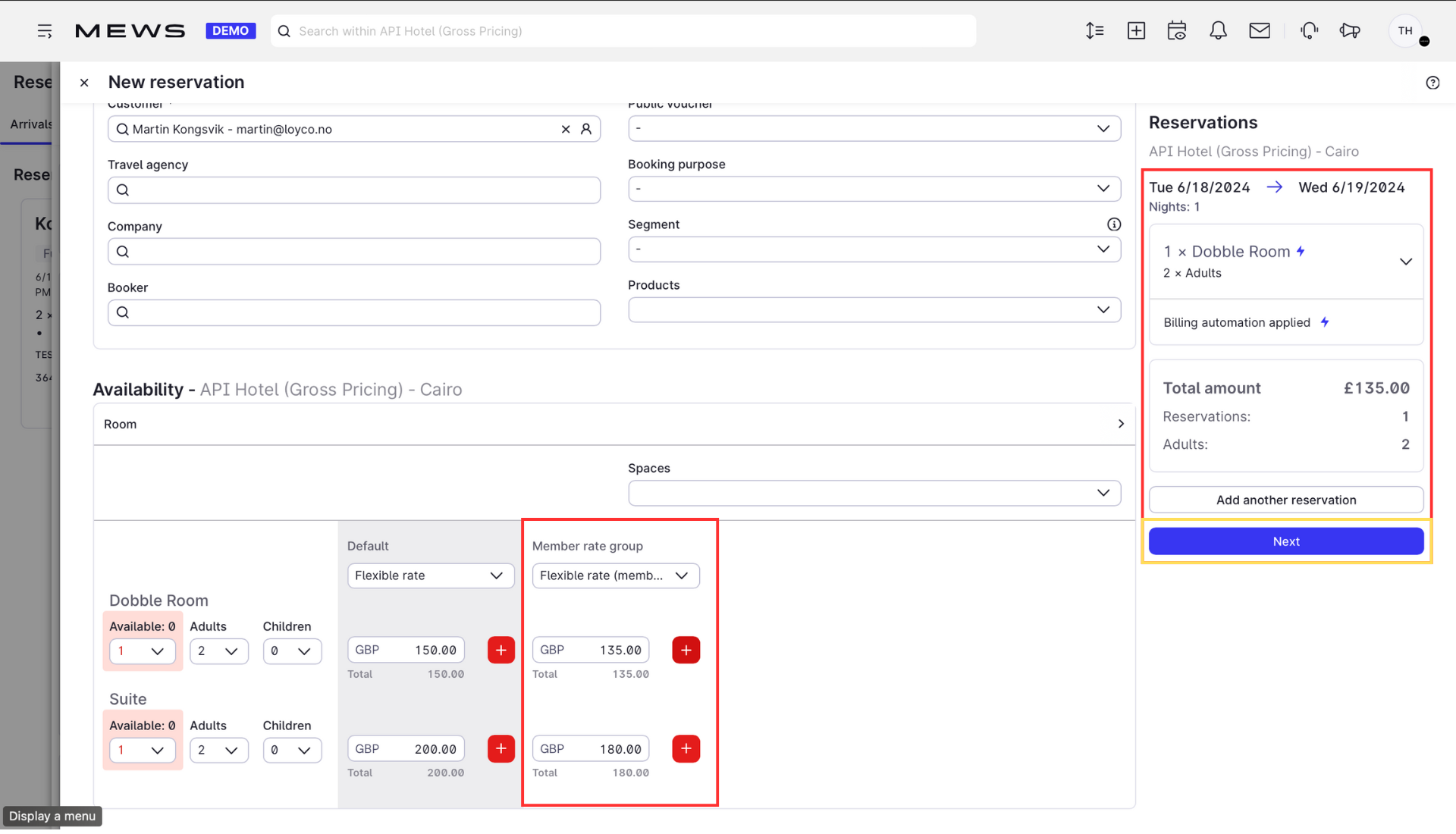
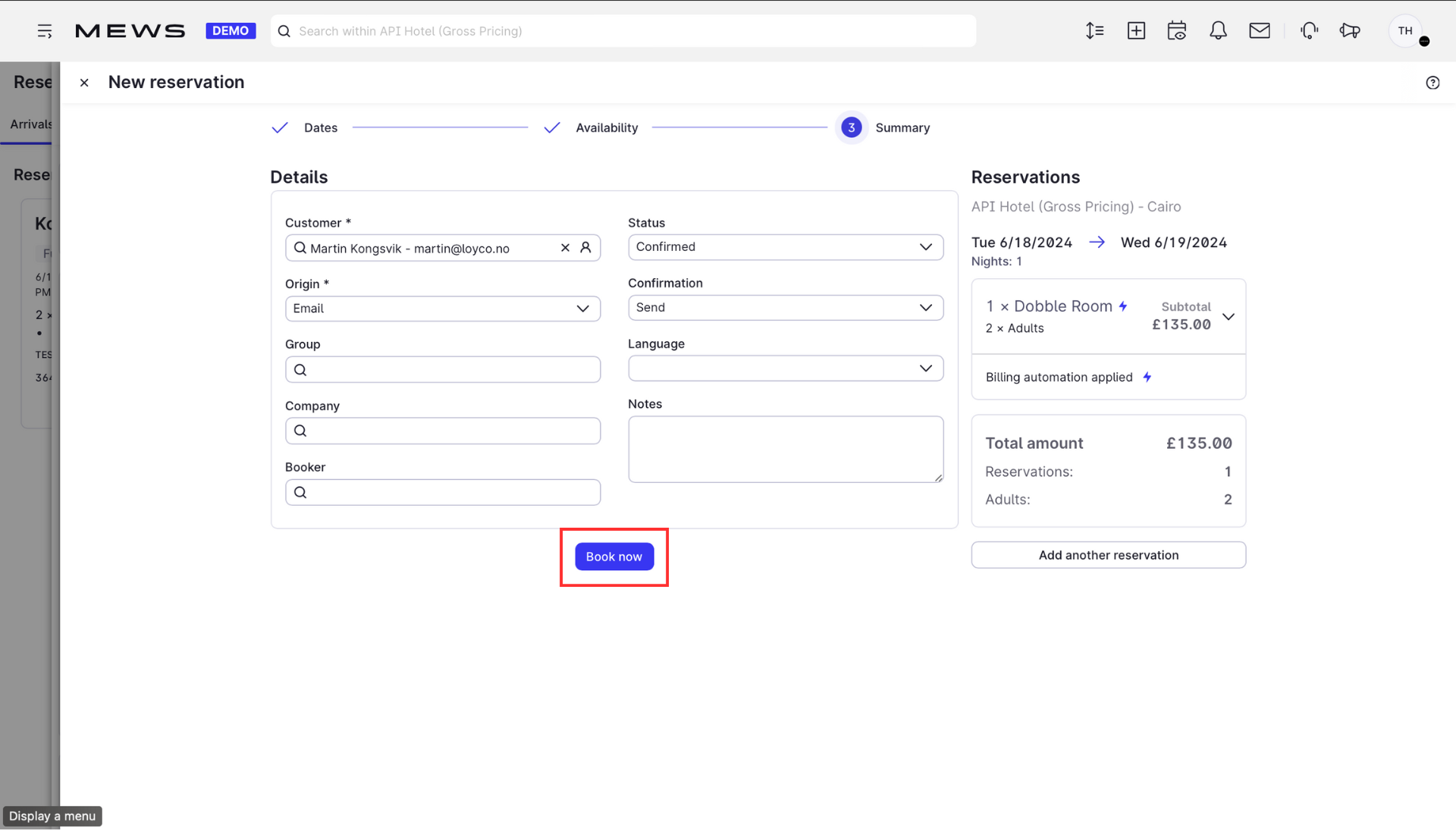
6. Complete the booking
Click Book now to confirm the reservation. The member rate and discount are now applied to the booking.
Good to know
- Always check the member level before selecting the rate. Applying the wrong rate group gives the guest incorrect benefits and pricing.
- Not sure if the guest is a member? See Identify members in Mews.