
Create voucher in Mews
Steps to create vouchers in the Loyalty dashboard and publish them to members as exclusive rates or campaign links.
Vouchers can be used in two ways: published to the member portal as an exclusive rate, visible to all members or only a specific member level, or sent directly to members as campaign links via email or SMS.
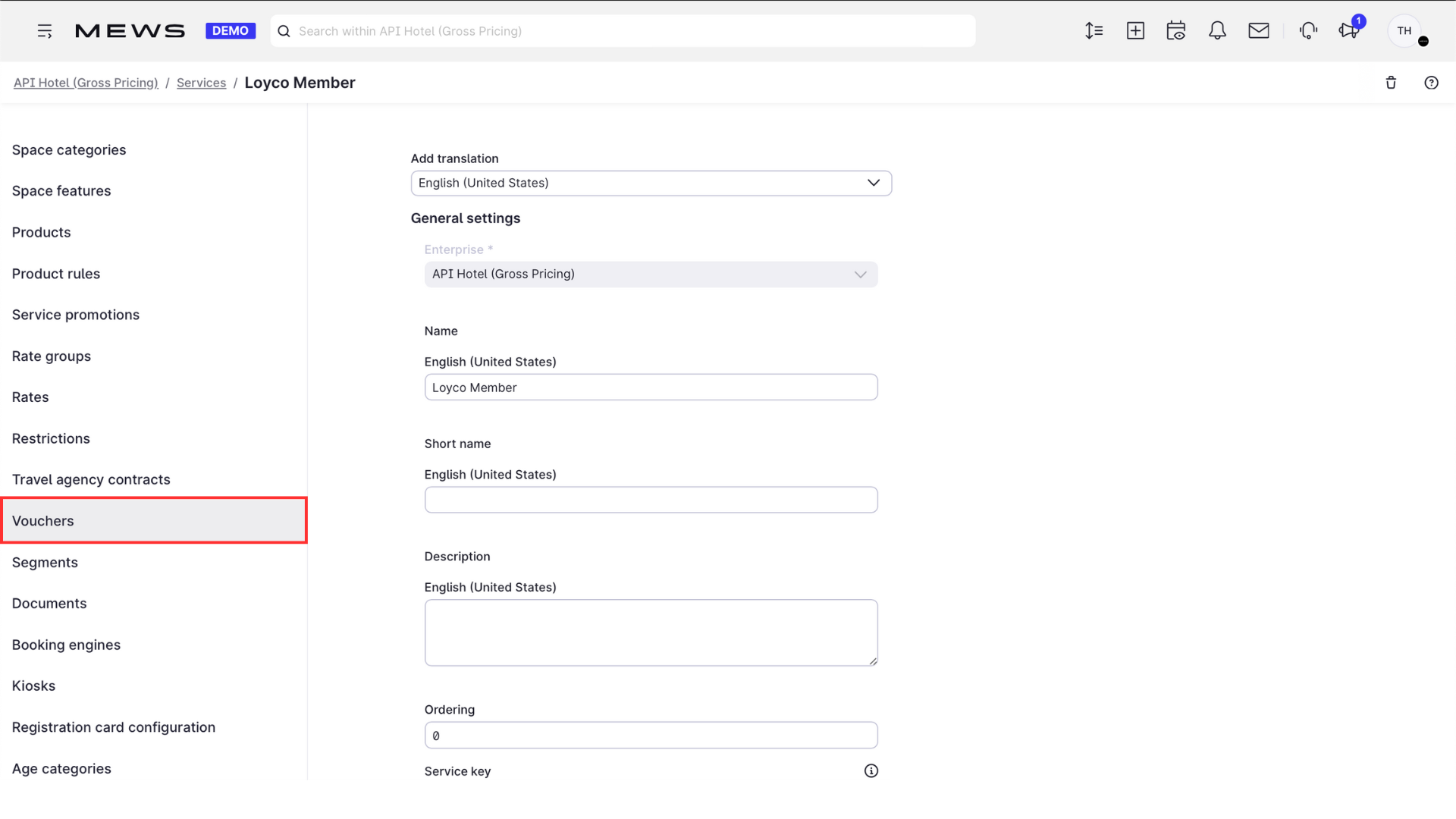
1. Open Vouchers
In the Loyalty dashboard, click Vouchers.
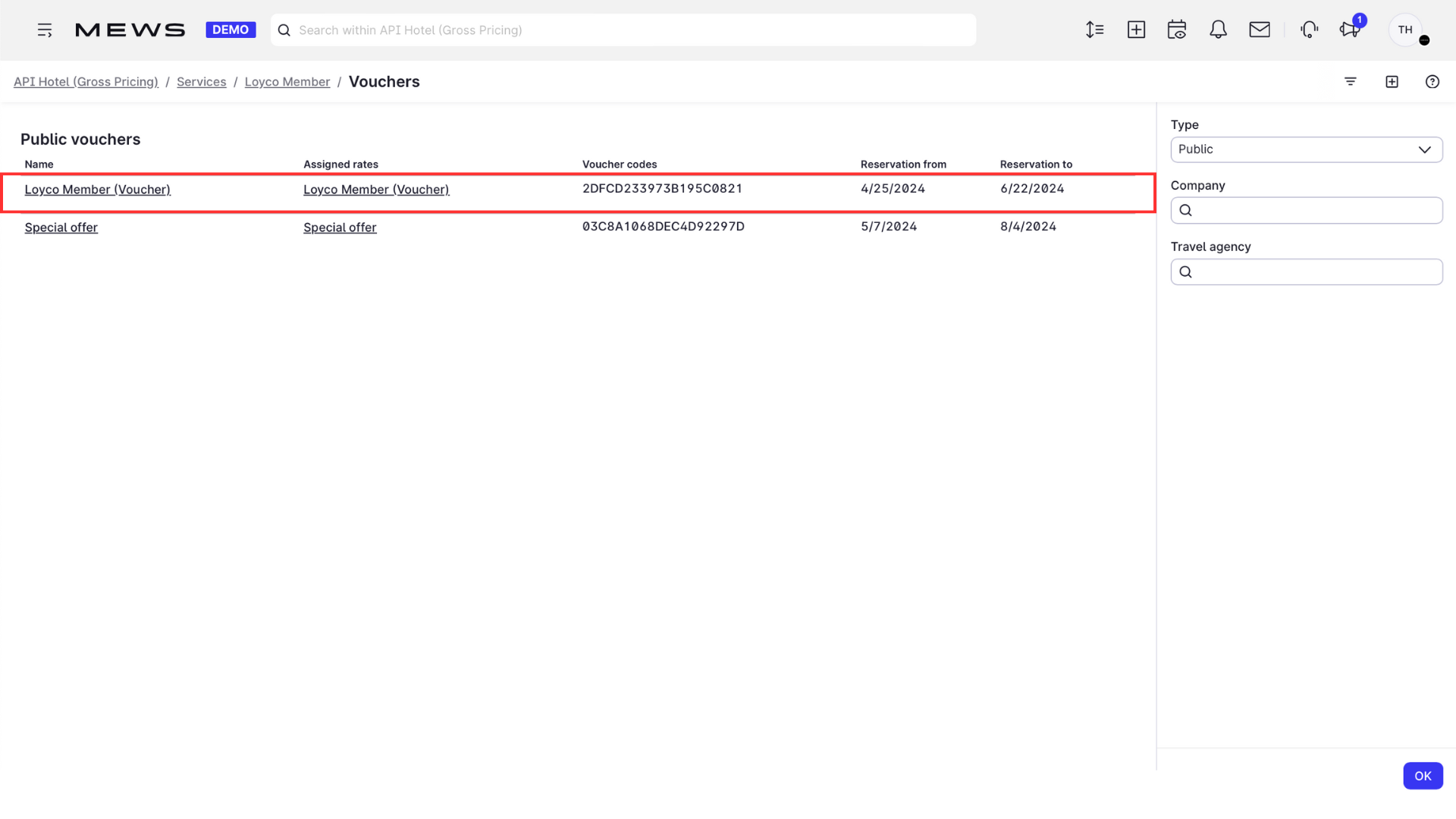
2. Create a new voucher
Click + to create a new voucher.
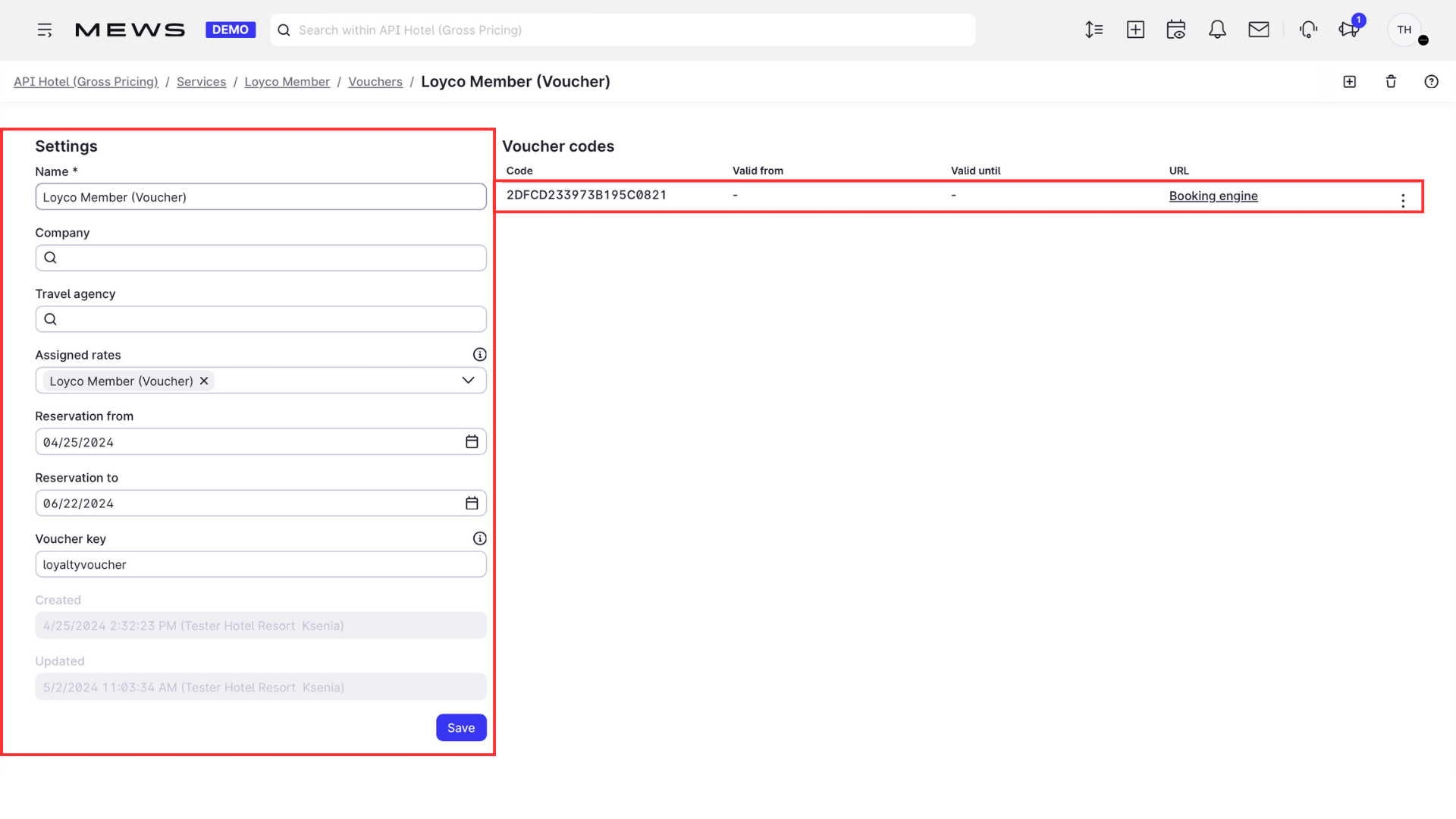
3. Configure the voucher
Choose the voucher period and a unique campaign key. Select the audience: publish to the member portal for all members or restrict it to a specific member level.
4. Copy the booking engine link
Click the Booking engine URL. The link comes preconfigured with the voucher code, ready to embed in loyalty emails, SMS, and other member communications.
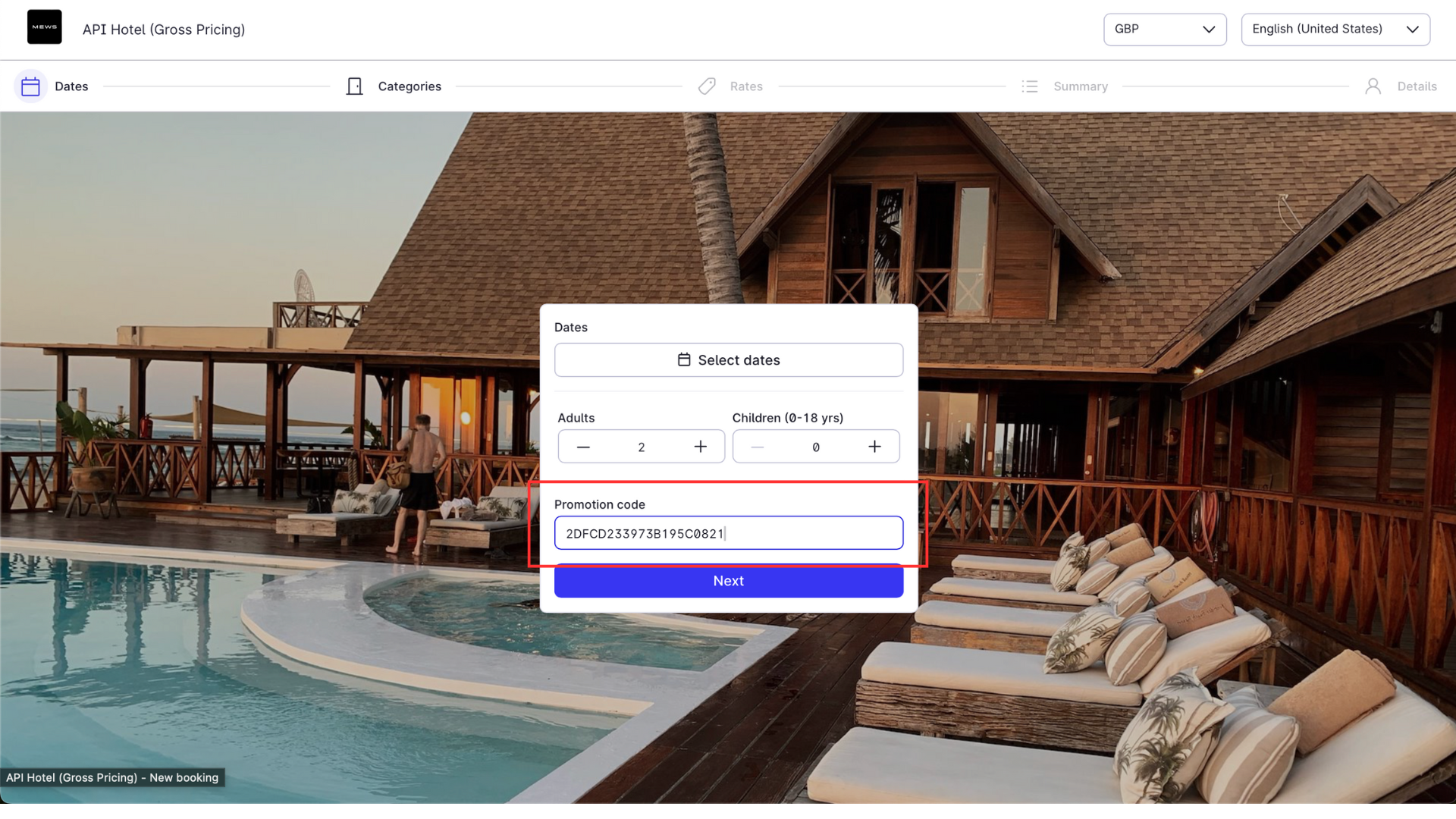
5. Members book with the voucher
Members open the offer from the member portal or the campaign link, choose a room, and see the voucher rate displayed in the booking engine.
Good to know
- Receptionists can see public vouchers directly from the PMS.